
Project Service Automation with Dynamics 365 in 2026: A Technical Deep Dive

Table of Contents
Introduction
The operating environment in 2026 is complex. As a C-level executive, you’re expected to deliver projects faster, control costs, and still have clear visibility across teams, budgets, and timelines. Dynamics 365 Project Service Automation (PSA) requires a close look for a practical way to manage those pressures without adding more overhead.
I’ve worked with dozens of organizations implementing PSA, and I can tell you firsthand: if you haven’t fully explored what this platform can do for you, you’re leaving money on the table. Project Service Automation isn’t just another tool; it’s a strategic asset that can fundamentally transform how you approach project delivery and keep you ahead of your competition.
In this post, I walk through how to use Dynamics 365 PSA end to end, including configuration choices and integration approaches that are often skipped in standard implementations.
Why Dynamics 365 PSA Should Be on Your Radar in 2026
At its core, PSA helps standardize and automate project workflows across regions, teams, and time zones. The value goes beyond efficiency gains. It gives organizations consistent control over how projects are planned, executed, and measured. Whether you’re running large, multi-region programs or smaller delivery-focused engagements, PSA provides a structured way to keep work on track.
From an executive perspective, this is crucial. You need visibility into ROI, KPIs that reflect real performance, and assurance that teams are staffed and operating effectively.
Dynamics 365 PSA supports those needs in a few key ways:
- Complete Project Visibility: Real-time insights into project status, progress, budget, timeline, all in one place
- Smarter Resource Deployment: Assign the right people with the right skills to the right work, every time
- Better Bottom Line: Accurate cost and revenue tracking that helps you optimize margins and streamline invoicing
- AI-Driven Intelligence: Predictive analytics that help you spot risks early and optimize how you schedule resources
See D365 Project Operations in Action
If you need a solution that grows with your business and adapts to your specific requirements, Dynamics 365 PSA fits the bill. Our team has helped organizations get the most out of this platform, let us show you what's possible.
Request a DemoYou may also like: Increasing User Productivity with Microsoft Dynamics 365 Project Operations
Technical Architecture Overview
Before getting into configuration, let’s talk about how PSA fits into your broader Dynamics 365 ecosystem. PSA runs on the Common Data Service (now Dataverse), which means it uses the same security model, scale, and integration capabilities as the rest of the Power Platform.
Key architectural components:
- Dataverse Tables: PSA extends standard entities like Account, Contact, and Opportunity with project-specific tables including Project, Project Task, Resource Requirement, and Time Entry
- Business Process Flows: Out-of-the-box flows for quote-to-cash and project execution that you can customize
- Power Automate Integration: Native hooks for workflow automation across the project lifecycle
- API Access: Full REST API support for custom integrations with ERP, HRM, and other enterprise systems
The important point is that PSA does not operate in isolation. It’s part of your broader business application stack, allowing data to move between sales, service, and project delivery without manual handoffs.
How to Set Up Project Service Automation in Dynamics 365?
1. Create Organization Units in Dynamics 365 PSA:
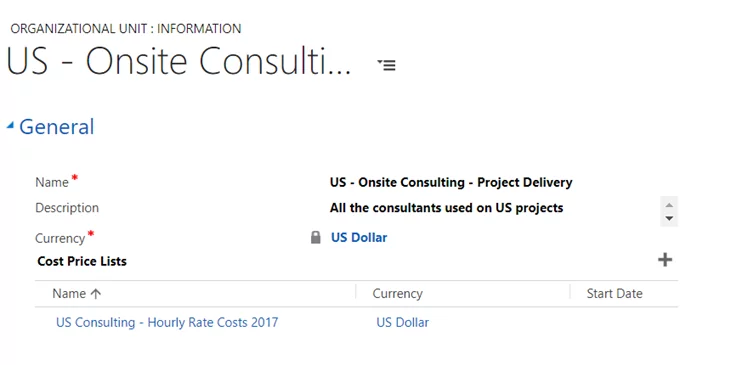
Organization units form the structural base of PSA. They let you link roles, price lists, and resources based on geography, currency, or internal team structure.
A simple example: if you run a consulting firm with offices in the US, Australia, and the UK, you would create one organizational unit per location, each mapped to its local currency. This looks simple, but mistakes here often show up later as pricing and reporting problems.
Technical considerations:
- Organization units are tied to the msdyn_organizationalunit table in Dataverse
- Each unit requires a unique name and a base currency defined by an ISO 4217 code
- Once transactions exist, the base currency cannot be changed
- Organization units support parent-child hierarchies, which works well for regional offices under country or global structures
Before moving on, make sure this model is clear. Microsoft’s documentation explains the mechanics, but it’s worth spending time understanding how organizational units affect pricing, reporting, and resource management later on.
2. Set Up Cost Pricelists:
Cost pricelists are critical because they drive your cost versus revenue calculations throughout both the estimation and execution phases of your projects.
Here’s what you need to think about:
- Create dedicated cost pricelists for each office location
- Link each organization unit to its corresponding cost pricelist
- Don’t forget about offshore resources, they need to be included in the pricelist structure because they factor into your overall project costs
- Remember, currency is set at the organizational unit level, so all projects in that unit will use the same currency
Technical details:
Cost pricelists use the msdyn_pricelist entity with the context field set to “Cost.” Each pricelist has an effective date range (msdyn_effectivedate and msdyn_expirationdate), which is crucial for handling rate changes over time. When PSA calculates costs, it performs a date-based lookup to find the applicable pricelist, then drills down to the role price.
Maximize Your Project Success with Our Dynamics 365 Experts
Need guidance on improving how your projects are managed? Our Dynamics 365 Project Management consultation helps you streamline processes, optimize resources, and ensure accurate cost tracking and invoicing.
Get our Expert Help3. Define Multiple Pricelists for Your Roles:
This is where PSA starts to deliver real flexibility.
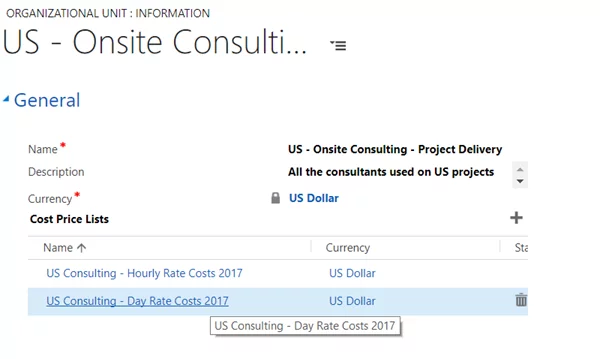
You can link multiple cost pricelists to a single organization. For instance, I typically set up two pricelists for US-based projects: one for hourly rates and another for daily rates. This gives you much more precise cost tracking and makes it easier for your project managers to estimate expenses and resource needs accurately.
Keep in mind that each organization unit gets its own cost pricelist, and yes, you still need to account for those offshore resources in your cost structure.
Advanced configuration tip: You can create custom price resolution logic using plugins on the msdyn_resourceassignment entity. This is useful when you have complex pricing rules that go beyond standard date and role-based lookups, for example, tiered pricing based on project size or client-specific rates.
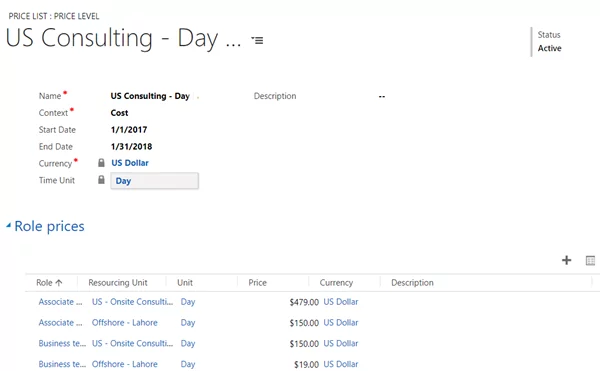
4. Open and Review the Pricelist in Dynamics 365 PSA:
After linking your pricelists, it’s important to review them to ensure everything is set up correctly. Here’s what to check:
- Context Field: Every pricelist has a context that tells you whether it’s for sales, purchases, or costs
- Unit Pricing: The unit (hourly, daily, etc.) gets defined at the pricelist level and can’t be changed for individual items. Need hourly pricing? You’ll need to create a separate pricelist for that.
Technical note on units:
PSA uses the Dynamics 365 Unit and Unit Group entities (uom and uomschedule). Standard units include time-based (hour, day, week) and quantity-based.
If you need custom units, say, story points for agile projects, you can extend the unit schedule, but be careful about how this impacts cost and revenue calculations in the project estimation engine.
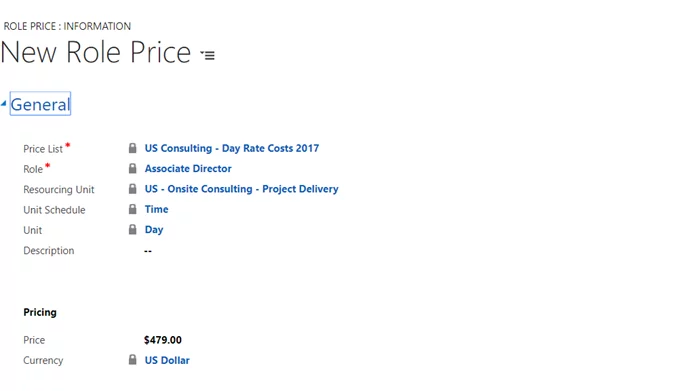
5. Efficiently Add Pricelist Items (Role Price):
I’ll be straight with you, creating individual role prices for each resource can be time-consuming. These role prices define what each role costs based on the resourcing unit and pricelist you’re using.
Here’s what I’ve learned the hard way:
Instead of entering everything manually, use Excel import or Power Automate. When I first started, manually adding 10 roles took hours; importing the data would have saved a huge amount of time and reduced errors.
Technical implementation options:
- Excel Import: Use the standard Dynamics 365 data import wizard with the msdyn_roleprice entity
- Power Automate: Build a flow that reads from a SharePoint list or Azure SQL database and creates role prices via the Dataverse connector
- Custom API Integration: For large-scale deployments, use the Web API with batch requests to import thousands of role prices efficiently
After you’ve imported your data, double-check that all your role prices are correct. Pay special attention to the msdyn_resourcingunit field, incorrect associations here will cause cost calculation errors downstream.
6. Configure Resource Requirements and Skills:
This is an area many implementations gloss over, but it has a direct impact on how well PSA handles scheduling. Resource requirements and skills setup are where the scheduling engine actually earns its keep.
Setting up your skills framework:
- Define a comprehensive skills catalog using the msdyn_characteristic entity
- Assign proficiency levels (1-10 scale) to each skill
- Use skill rating models to standardize how you assess competency across the organization
Resource requirement configuration: When you create project tasks, PSA generates resource requirements (msdyn_resourcerequirement) that specify:
- Required role (msdyn_roleid)
- Required skills and proficiency levels
- Duration and effort
- Organizational unit
- Work hours template
The scheduling engine uses this metadata to match available resources against requirements. If you’re dealing with complex resource allocation scenarios, say, you need a senior .NET developer with Azure certification who’s available 50% time for 3 months, proper requirement configuration is critical.
Pro tip: Integrate with Azure Active Directory to pull skills and certifications automatically. You can use Microsoft Graph API via Power Automate to sync employee profile data into PSA’s bookable resource records.
7. Set Up Project Templates:
One of PSA’s most underutilized features is project templates. Instead of recreating project structures from scratch every time, build reusable templates.
Technical implementation:
- Project templates are stored in the msdyn_project entity with a special flag (msdyn_istemplate = true)
- Templates can include:
- Work breakdown structure (WBS) with task hierarchies
- Resource assignments (generic or named)
- Project estimates (effort, cost, revenue)
- Custom fields and attributes
- Associated document templates
Advanced templating strategy: For organizations running similar projects repeatedly (think application upgrades, infrastructure deployments, or audit engagements), create template libraries organized by:
- Project type (fixed price, time & materials, retainer)
- Industry vertical
- Complexity tier (small/medium/large)
- Methodology (waterfall, agile, hybrid)
You can automate template selection using Power Apps forms with conditional logic, or build a custom template selector using Canvas Apps that queries your template library based on deal characteristics from the opportunity record.
8. Integrate Time Entry and Expense Management:
This is where PSA directly affects day-to-day operations. Time and expense tracking feeds cost accuracy, margin reporting, and billing, so a weak setup here shows up quickly in financial results.
Time entry architecture:
- Time entries use the msdyn_timeentry entity
- Each entry links to a project, task, bookable resource, and optionally a specific resource assignment
- The time entry state machine supports draft, submitted, approved, and rejected states
- Approval workflows can be configured using Power Automate based on project manager hierarchy, organizational unit, or custom business rules
Mobile time entry: Don’t overlook the mobile experience. The Dynamics 365 mobile app supports offline time entry, which is crucial for field consultants. However, the out-of-the-box mobile app has limitations. For complex scenarios, consider:
- Building a custom Canvas App optimized for mobile time entry
- Leveraging Power Apps component framework (PCF) for custom time entry controls
- Integrating with third-party time tracking tools via API
Expense management integration: Expenses (msdyn_expense) follow a similar pattern to time entries. Key technical considerations:
- Receipt attachment handling via Azure Blob Storage
- Expense category taxonomy and GL account mapping
- Currency conversion for international projects
- Credit card integration via Power Automate connectors to systems like Concur or Expensify
9. Configure Invoicing and Revenue Recognition:
This is where PSA directly impacts your cash flow, so it’s worth getting the configuration exactly right.
Invoice architecture:
- Invoices are created from the msdyn_invoice entity
- PSA supports multiple invoice methods:
- Time and materials (bill actual time and expenses)
- Fixed price (milestone-based billing)
- Progress-based (percentage complete)
- Unit price (deliverable-based)
Technical configuration for invoicing:
- Contract lines (msdyn_contractline): Define billing rules at the contract line level
- Billing milestones (msdyn_projectcontractmilestone): Set up milestone schedules for fixed-price work
- Invoice frequency: Configure billing cycles (monthly, bi-weekly, project completion)
- Invoice schedules (msdyn_invoicefrequency): Automate recurring invoice generation
Revenue recognition: For organizations following ASC 606 or IFRS 15, PSA provides revenue recognition capabilities:
- Actual vs. Recognized cost and revenue tracking
- Percentage of completion calculations
- Work-in-progress (WIP) reporting
- Integration with ERP systems (Dynamics 365 Finance, NetSuite, SAP) for GL posting
Advanced tip: Build custom revenue recognition logic using plugins on the CalculatePrice message. This lets you implement complex revenue recognition rules, like recognizing revenue only after client acceptance, or implementing holdback provisions.
10. Implement Project Analytics and Reporting:
PSA’s built-in reports are a good starting point, but they fall short for leadership-level decisions. To get meaningful insight, you need a reporting layer that reflects how projects actually perform.
Power BI integration:
- PSA includes several pre-built Power BI templates
- Connect Power BI Desktop directly to Dataverse using the native connector
- Key metrics to track:
- Project margin (planned vs. actual)
- Resource utilization rates
- Project health scores (on time, on budget, at risk)
- Pipeline forecasting (converting opportunities to projects)
- Skills gap analysis
Building custom dashboards: Use Dataverse views and FetchXML queries to create performant reports that don’t kill your database. For complex analytics requiring cross-entity aggregations, consider:
- Azure Synapse Analytics with Dataverse export to Azure Data Lake
- Power BI dataflows for ETL processing
- Embedded analytics in custom Canvas Apps for role-specific dashboards
Real-time project monitoring: For executive dashboards, implement real-time KPI monitoring using:
- Power Automate flows triggered on project milestone completion
- Custom PCF controls showing project health in model-driven apps
- Microsoft Teams integration with bot notifications for project alerts
11. Finalizing Your Setup:
You’ve got your organization units configured, your cost pricelists built out, your role prices loaded, and your advanced integrations in place. Now comes the crucial part: testing. Run a few pilot projects through the system to make sure everything’s working the way you expect.
Your testing checklist should cover:
- Cost tracking accuracy across different project types
- Proper application of hourly versus daily pricing models
- Correct accounting for offshore resources in your project cost structure
- Smooth integration with Microsoft Teams and other collaboration tools your organization uses
- Invoice generation and accuracy for all contract types
- Revenue recognition calculations align with accounting standards
- Resource scheduling engine correctly matches skills to requirements
- Mobile time entry works offline and syncs properly
- Custom workflows and plugins execute without performance degradation
Performance testing considerations: PSA can handle large-scale deployments, but you need to architect for it:
- Benchmark query performance on key entities (projects, time entries, invoices)
- Test bulk operations (importing 10,000+ time entries)
- Validate that custom plugins don’t exceed Dataverse platform limits (2 minutes execution time, 512 MB memory)
- Monitor API throttling limits if you have heavy integration traffic
Once everything checks out, you’re ready to roll out Dynamics 365 PSA across your organization.
How Does PSA Integrate with the Rest of Your Enterprise Systems?
PSA does not work in a vacuum. In most environments, it needs to exchange data with ERP, HR, CRM, and other core systems to support finance, staffing, and delivery operations.
ERP Integration for Financial Data
Most organizations need to sync project costs, revenue, and invoices to their ERP system for GL posting.
Integration approaches:
- Native D365 Finance Integration: If you’re running Dynamics 365 Finance, there’s built-in integration using dual-write or data events
- Azure Integration Services: For other ERPs (SAP, Oracle, NetSuite), build integration pipelines using:
- Azure Logic Apps for workflow orchestration
- Azure Service Bus for reliable messaging
- Azure Functions for custom transformation logic
- Third-party iPaaS: Tools like Jitterbit, Boomi, or MuleSoft work well for complex transformation requirements
Key data flows:
Project costs to ERP GL accounts
Invoices to ERP AR module
Purchase orders to ERP AP module
Resource rates to ERP cost centers
HRM Integration for Resource Management
Syncing employee data, skills, and availability from your HR system keeps PSA’s resource scheduling accurate.
Technical implementation:
- Use Microsoft Graph API to pull data from Azure AD and Microsoft 365
- Build Power Automate flows that sync from Workday, SuccessFactors, or ADP
- Map HR organizational structure to PSA organizational units
- Sync skills, certifications, and training history to bookable resource characteristics
Custom Development with Power Apps Component Framework:
For specialized UI requirements, PCF lets you build custom controls that run natively in Dynamics 365.
Example use cases:
- Custom Gantt chart for project visualization
- Resource capacity heat map
- Drag-and-drop resource scheduling interface
- Project health dashboard with real-time metrics
PCF controls are built using TypeScript and modern web frameworks (React, Angular), and they have full access to Dataverse APIs.
Need Help with Dynamics 365 Project Automation?
Our team at AlphaBOLD has guided countless organizations through PSA implementation, from initial configuration through to advanced integration and custom development. Let's talk about how we can help you.
Get our Expert HelpConclusion
Project Service Automation is no longer optional. If you want predictable delivery, controlled costs, and clear visibility, PSA needs to be part of your operating model.
When Dynamics 365 PSA is configured and integrated correctly, it gives leadership a clear view of resource capacity, project margins, and delivery risk. That level of control is hard to achieve with disconnected tools and manual processes.
Used properly, PSA becomes the system that ties project planning, staffing, execution, and financials together. It allows teams to make informed decisions, adjust quickly, and run projects with confidence.
FAQs
Yes, PSA supports multiple billing models, including fixed price, time-and-materials, milestone-based, and unit-price projects.
Currency is set at the organizational unit level, and PSA automatically calculates costs and revenue based on the assigned unit for each project.
Yes, Power Automate can create workflows for approval routing based on project manager hierarchy, organization unit, or custom business rules.
Absolutely. Use Azure Integration Services, third-party iPaaS tools, or custom APIs to sync project financials with systems like SAP, Oracle, or NetSuite.
Explore Recent Blog Posts


Related Posts